Oh the weather outside is frightful, but the fire is so delightful. And since we've no place to go, let it snow, let it snow, let i snow virtual python turtle snowflakes across my Raspberry Pi screen!
Yes, it is that time of year when I break out my christmas jumper, put Frozen on repeat and start eating Lebkuchen by the bucketload. coincidentally, it is also Computer Science Week 8th December to 14th December 2014 and Code.org are asking everyone to take part in just one hour of code. They have created a website full of activities for any ability or interest and one really caught my eye. It is called 'Artist with Anna and Elsa from Frozen'!
I love making patterns with code, as you may remember from episode 27! There is a wonderful python module called turtle. In fact turtle has been around for a long time, and I fondly remember typing my first computer code into a BBC micro to make a turtle draw a square. Therefore I have a bit of a head start, and so the Anna and Elsa activity on code.org only took me a few minutes. As I like a challenge I thought I'd see just how far I could push myself with python turtle to create similar snowflakes.
I created a python program to draw snowflakes at random places in a window with random pen colour!
If you would like to learn how you can create snowflake shapes with code then check out my latest episode:
If you would like to take a look at my final code then you can clone if from my github page or just take a look here!
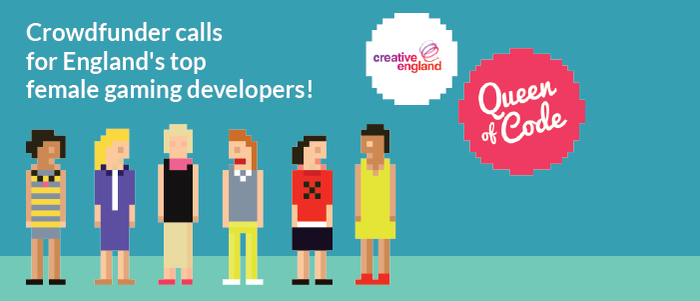
In a former life I was a computing teacher, a job I enjoyed very much. I had the good fortune to meet and teach some wonderful young people who are still in contact with me today. One of them contacted me recently to ask that I help back their competition entry in the Queen of Code. The Queen of Code Campaign is an amazing campaign that is helping push the way for females in the computing world by driving equal opportunities for all. They have teamed up with Creative England and Crowdfunder this time to help push female Game Designers get the recognition that they deserve.
You can help them reach the top 5 by backing their project 'Junior Ninja' for as little as £2. I did back their entry and I hope you will too after you read a little about them:
Who are Stealthy Badger Studios?
Stealthy Badger Studios is an indie games development team based in london. We are currently a team of 6 with our only female team member Tish leading us. Currently we are developing a mobile game called Junior Ninja and are taking part in the Queen of Code campaign with Creative England and Crowdfunder.
The Queen of Code Campaign is an amazing campaign that is helping push the way for females in the computing world by driving equal opportunities for all.They have teamed up with Creative England and Crowdfunder this time to help push female Game Designers get the recognition that they deserve.
Junior Ninja is a 2D platformer for mobiles which sets our ninja, Ned, challenges and training to help him pass his ninja exams and become a fully qualified member of the team. Help Ned move, Jump, and fight his way to glory while collecting as many coins as possible. We’re currently looking to publish our simple prototype online for people to play, so players can get a feel for the style of gameplay. However, this means players will be greeted by Square Ned, as Ninja Ned is still a working progress and we need your help to hire artists to make Ned look his best!
Our Crowdfunder page is where you can help support Junior Ninja. Every small donation, or even share on social media makes a big difference and can really help our campaign along!
Ever wanted to make an interactive digital landscape? Flowers are great, but they die too quickly. I'd much rather have some flowers that I can enjoy at any time and that spin at the touch of a button! In this tutorial I will show you how to get started with Pibrella and Python 3 to create your own digital garden on a Raspberry Pi.
Take two male to male jumper wires and cut off the connectors at one end. Strip the wires and solder them to the two contact points on the motor. I also added some hot glue once the solder had dried over the top to make the joint more stable and less likely to break. You may need some help from an adult to do this.
Optional step: If you would like to use your motors later for a roving robot, or to help stick your flower to the motor, glue on a wheel like this one. I used some very strong glue, so make sure that you get the help of an adult to help you do this.
Design your flower by either cutting out a template like these, or by drawing and cutting out your own. Using blu tack and a drawing pin, add your flower to your wheel or motor.
Add a Pibrella
Plug your pibrella into your Raspberry Pi. It should fit over the first 26 GPIO pins. Ensure that there is a rubber foot underneath so that the metal parts of the pibrella board do not touch the HDMI port on your Raspberry Pi B+ (as this could short the Pi).
Look on the Pibrella board for whee it says 'Out'. Beneath are a number of ports that have been labelled. Look for the row marked 'E' and push the other end of the flower/motor jumper cable into the ports next to each other. (It doesn't matter which way round as long as they are both plugged in the row 'E').
Prepare your Raspberry Pi
Add your SD card with Raspbian on to your Raspberry Pi and connect it to a screen, keyboard, mouse and power. You can plug the micro usb power into the pibrella board and it will power your Pi too.
Log into your Pi and load the GUI by typing 'startx'. Once loaded, open an LXTerminal window and type in the following commands:
sudo apt-get update sudo apt-get upgrade
Once this process is completed (it may take a few minutes) you are ready to download and install the pibrella python 3 library to control your motor. In the same LXTerminal window type:
sudo apt-get install python3-pip
followed by:
sudo pip-3.2 install pibrella
Now you can load the Python 3 programming environment IDLE3 by typing the following:
sudo idle3 &
Let's write some code!
Opening IDLE 3 as the super user allows you to control the GPIO pins with your code in IDLE 3.
Once the application has opened click on File and New Window. Then save the file as spin.py by clicking on File and Save As.
Begin your program by importing the libraries that you need to control both the Pibrella board and time.
import pibrella import time
Now we can add lines of code to turn on the motor, wait for a period of time in seconds, and then turn off the motor connected to output 'e' on the Pibrella board.
Everyone tells me that soldering is easy. For a long time I've seen it as a barrier to be able to do a lot of electronics or maker style crafts. I usually try and buy components that are pre-soldered or ask someone else to solder them for me. Since joining Raspberry Pi, this has been a bit of a joke for the engineers. They think I'm a bit silly. I'm certain I'm not alone in this.
Recently Wednesdays at Pi Towers have become 'Gert Wednesdays' when Gert comes into the office to visit us and teach some of us new skills. Gert Van Loo is an engineer, and one of the first volunteers working on Raspberry Pi. He has also created lots of add on boards for Raspberry Pi like the well titled 'Gertboard'. He has also created the 'Gertduino'. You can see where Gert Wednesdays come from cant you. Gert promised me he'd teach me how to solder and he didn't disappoint. In one morning of simple tuition I was taught how to solder. THANKS GERT!
I decided that after I solder ALL THE THINGS in my office drawer that I've been dying to use with my Raspberry Pi, I would put my new found knowledge to good use by creating a tutorial video for GGD. It's a short video but I hope it will help give other people the confidence to start or at least to attend a Maker Faire event where they can learn.
Equipment Required
Soldering Iron
Solder
Stand
Something to solder!
Safety Tips
Soldering irons get really hot. They can burn.
Holding an iron, solder and a PCB requires more hands than you have. Get a clamp to help.
Be careful when trimming legs of components that they do not fly off into someones eyes.
Help
I found 'Soldering is Easy' web comic by Mitch Altman, Andie Nordgren and Jeff Keyzer really helpful too. It has some great sketches and explanations.
Get yourself to a Maker Faire or a Raspberry Jam event to learn how to solder!
The latest product from Raspberry Pi was launched today and we are told is the final version of the Raspberry Pi B. It's called the B+ to reflect this and here is a first look video to wet your appetite.
What's the same?
The model B+ has many of the same features as the model B, like the processor and 512MB of RAM. It's also credit card sized, with the addition of rounded edges, and the ports sit flush against the edge instead of sticking out slightly. The operating system Raspbian is also still in use with this model and you can use NOOBS to install the latest version onto a Micro SD card.
What's different?
Lots of exciting new features on the Model B+ such as:
4 USB ports so that you can use more peripherals and accessories alongside your keyboard and mouse.
More General Purpose Input Output pins (GPIO). 40 in total, with the first 26 remaining the same as the model B.
Micro SD card slot instead of the larger SD card size.
Improved audio for speakers and headphones
Improved power consumption.
Note: That on this B+ GPIO diagram that the yellow coloured pins labelled ID_SD and ID_SC are reserved for ID EEPROM so don't use them. At boot time this I2C interface will be interrogated to look for an EEPROM that identifies the attached board and allows automagic setup and the GPIOs.
I always tell you, my viewers, just how busy I am, and you're probably fed up hearing about it. Today I have proof that aside from the day job at Raspberry Pi, and the videos I make, I have lots going on!
Most notably, this month I was live on BBC Cambridge for the Naked Scientists Show, and there is a three page article from me and the rest of the EDU Pi gang in Linux Voice magazine!
Linux Voice
I'm a huge fan of the Linux Voice team, they stand up for open source software, and even give back to the open source community through their magazine. They are also huge Raspberry Pi fans, which meant that when I met up with them at the Raspberry Jamboree at the end of February 2014 with my colleagues, Ben and Clive, we had a lot to talk about!
In Issue 2 of Linux Voice Magazine p the Raspberry Pi education team!
Working in Cambridge, England, has many perks. The architecture is pretty cool for one, and being near so many science related colleges makes me feel inspired. Another great thing about Cambridge is the Naked Scientists.
The Naked Scientists are a media-savvy group of physicians and researchers from Cambridge University who use radio, live lectures, and the Internet to strip science down to its bare essentials, and promote it to the general public.
You can only imagine my excitement when they invited me onto their show with Eben Upton, CEO of Raspberry Pi. It was pretty late on a Sunday evening, so again not at my best, but you can hear the entire show in it's podcast form here. I felt very honoured to have been asked on.
One of the best add on's for a Raspberry Pi is a Pi Camera. It is a small board that connects to a Raspberry Pi with a ribbon style cable. Connecting a Pi Cam can be fiddly as the cable needs to be the right way round for it to work.
Begin by unwrapping your Pi Camera and removing the small blue plastic from the lens. Next locate the ribbon cable connector nearest to the Ethernet port. It is a small think black connector. Pull the two clips at either ends up to open it. Place the Pi camera ribbon cable into the slot with the blue side facing towards the ethernet port and the silver connectors facing away from the ethernet port. Whilst holding the pi camera ribbon cable gently push down the two black connectors on the Pi. Finally connect your Pi to a power source and let it boot.
That's the fiddly bit done! Now you will need to configure your raspberry pi before testing that your camera works. After logging in type:
sudo raspi-config
Select Enable Camera from the list with your keyboard and press enter. Select 'Enable' then 'Finish' and 'Yes' to reboot your Pi.
Once your Pi has booted again and you have logged in, and typed 'startx' to load the Raspbian graphical user interface, you can test that your camera works. Open a new LXTerminal window and type the following line:
raspistill -o cam.jpg
Press enter and you should see a preview of what your camera can see. It will then take a picture and save it in your home directory.
Getting Arty with Time Lapse Video
The Pi Camera takes some great resolution images, and is small enough to leave running by a window to take pictures over the course of a few hours. When you put all these images together in rapid succession you create a time lapse video. Here is an example of what you can do if you get good at time lapse photography:
To begin you will need to set your Raspberry Pi and camera up pointing out of a window somewhere. When I was in my office I pointed it out of a window at a road junction which is a bit boring, but sometimes you've got to work with what you have :)
The last command will take a photo every 60 seconds (60000 milliseconds) for 2 hours (7200000 milliseconds) resulting in a sequence of 120 images.
The “%04d” will result in a four digit number appearing in each filename.
Go away for two hours and when you come back you should be able to see all the pictures taken by typing 'ls' into the terminal window or on the command line.
Now you need to put them all together into a video. There are two ways in which you can do this. Firstly, you could use the Pi to create a video file, instructions for which can be found here, but this takes a long time and can result in your Raspberry Pi crashing. Instead I copied the files from the Raspberry Pi SD card via ftp to my computer. You could also use a USB memory stick to copy them over. Then using Movie Maker I added all the images and set the duration time to 0.04 before saving it as a movie.
Ta da, your very own time lapse creation!
Getting Arty with Stop Frame Animation
The Raspberry Pi is a great, cheap way to get started with stop frame animation. Here is an example of a stop frame animation I made a few years ago, it is actually my first ever YouTube video!
There is a great app created for the Raspberry Pi to help you created stop frame animations called 'Pi-mation':